


```html
Using Ollama with Jupyter through Open OnDemand
FRCE Open OnDemand provides an Ollama + Jupyter interactive application that launches JupyterLab together with a local Ollama model server on an FRCE GPU node. This is a convenient option when you want to experiment with an open-weight LLM from a Python or R notebook without creating a Slurm script or configuring a separate model endpoint.
The Ollama server runs as part of the same interactive FRCE session as Jupyter. It can be used through the Jupyter AI interface or called directly from notebook code using the Ollama API.
Important: Like other FRCE interactive jobs, the session only exists while its Slurm allocation is running. Ollama and Jupyter stop when the interactive session is deleted or reaches its requested wall time.
1. Launch Ollama + Jupyter
From Open OnDemand, select the Ollama + Jupyter interactive application. The launch form allows you to select the project directory, model, CPU cores, wall time, and GPU.
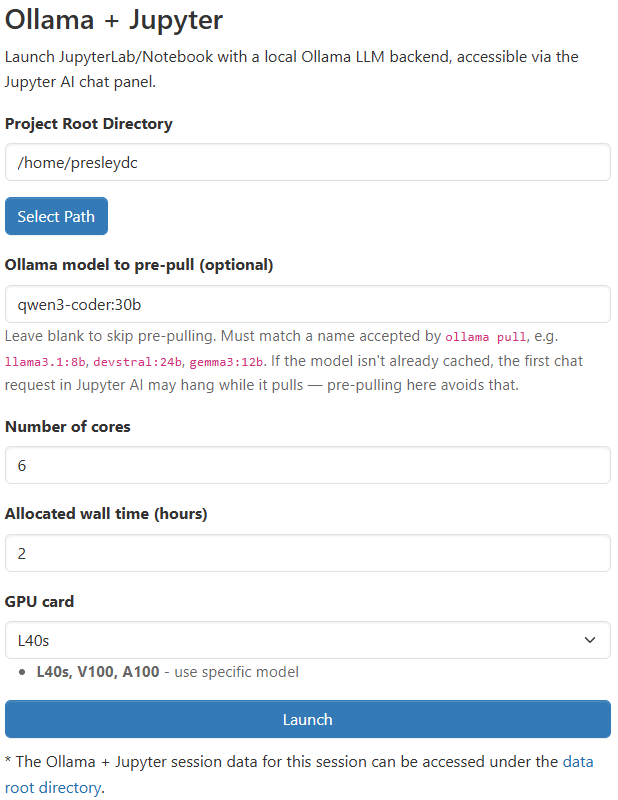
The options available to a user to launch an Ollama + Jupyter on FRCE. Selection of CPU, GPU, and open-weight model.
The main options are:
| Option | Description |
|---|---|
| Project Root Directory | The directory JupyterLab should use as the starting point for the session. |
| Ollama model to pre-pull | Optionally specify the Ollama model to make available before beginning work. For example, qwen3-coder:30b. Leaving this blank skips the pre-pull step. |
| Number of cores | The number of CPU cores allocated to the interactive job. |
| Allocated wall time | How long the interactive session may run. Jupyter and Ollama stop when this allocation expires. |
| GPU card | Select the GPU type used for the model. Available choices may vary depending on the Open OnDemand application configuration. Larger models generally require GPUs with more memory. |
Pre-pulling a model is useful when it is not already cached. Otherwise, the first request from Jupyter may have to wait while Ollama obtains and loads the model.
2. Wait for the allocation and application startup
Selecting Launch submits an interactive job to Slurm. The session may initially remain queued while FRCE waits for the requested GPU and other resources to become available.
Once Slurm assigns a node, Open OnDemand will show the session as Running.
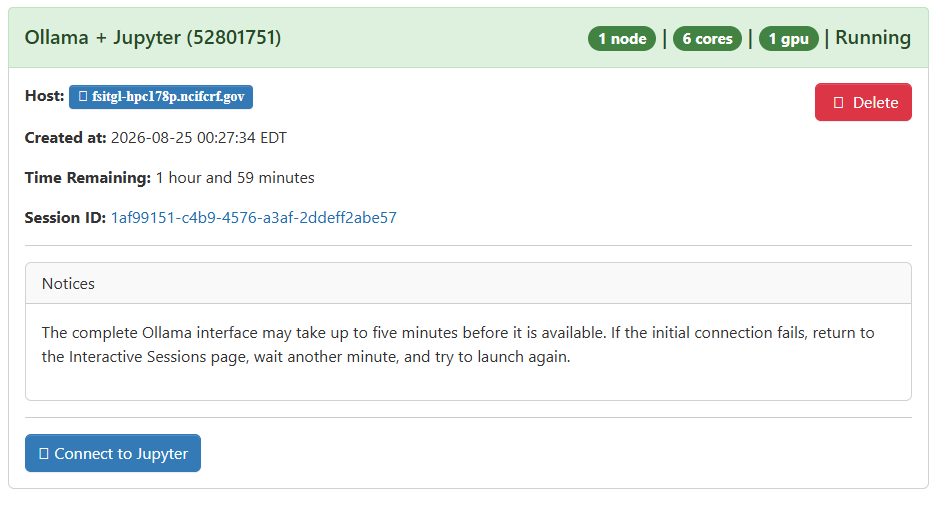
Showing an Slurm allocation has been granted and waiting on user to launch the Jupyter notebook
Running does not necessarily mean that Jupyter and Ollama are immediately ready. After the Slurm allocation starts, the application normally needs another two to three minutes to initialize Jupyter, start Ollama, and load the web interface. Large or uncached models can take longer.
If the first attempt to connect fails, wait another minute and try Connect to Jupyter again. Startup can occasionally take several minutes.
3. Connect to JupyterLab
When initialization is complete, select Connect to Jupyter. JupyterLab opens in the browser and provides the normal notebook, console, terminal, Python, and R interfaces.
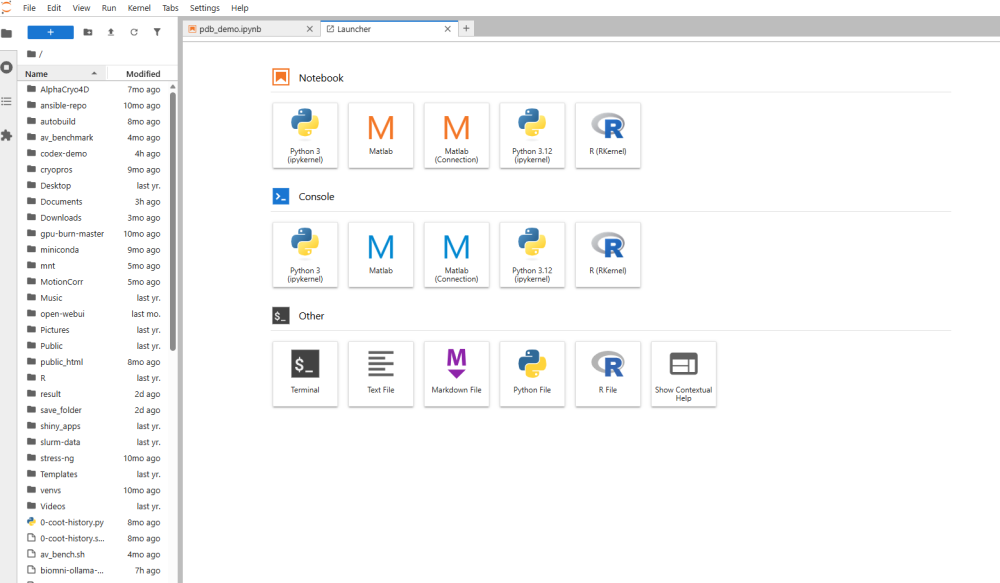
The Ollama server is running inside the same FRCE interactive session. The environment is configured so notebook code can connect to it locally. It is not necessary to create the separate .info file used by the standalone Slurm endpoint example.
Using Ollama from a notebook
You can use Ollama interactively through Jupyter AI or call it directly from notebook code. The following Python example demonstrates one useful pattern: converting inconsistent free-text scientific descriptions into structured data.
Show Python Ollama example
Step 1: Connect to Ollama and provide some example data
import ollama, json, time, os
import pandas as pd

client = ollama.Client(
    host=os.environ.get("OLLAMA_HOST", "http://127.0.0.1:11434")
)

MODEL = "qwen3-coder:30b"

# Representative examples of free-text experimental conditions.
# Note the differences in units, capitalization, ordering, and terminology.
conditions = [
    "20% PEG 3350, 0.2M ammonium sulfate, 0.1M Bis-Tris pH 5.5, VAPOR DIFFUSION, HANGING DROP, temperature 291K",
    "1.6 M sodium citrate pH 6.5, vapor diffusion, sitting drop, 20 C",
    "0.1M HEPES-NaOH (pH 7.5), 25 %(w/v) polyethylene glycol 3,350, 0.2M MgCl2, 277K",
    "PEG400 30%, 100mM Tris HCl PH 8.5, 200mM sodium acetate; hanging drop vapour diffusion at room temperature",
    "crystals grown by microbatch under oil; 18% w/v PEG 8000, 0.1 M sodium cacodylate pH 6.5, 0.2 M calcium acetate",
    "2.0M (NH4)2SO4, 0.1M sodium acetate trihydrate pH 4.6, 25% glycerol as cryoprotectant, VAPOR DIFFUSION",
]
Step 2: Define the structure you want returned
SCHEMA = """Extract crystallization conditions as JSON, nothing else:
precipitant (string), precipitant_conc (string, keep original units),
salt (string or null), buffer (string or null), ph (number or null),
method (one of: vapor diffusion, microbatch, dialysis, other),
drop_type (string or null), temperature_k (number or null).
Convert Celsius to Kelvin. Room temperature is 293."""

def parse(text):
    r = client.chat(
        model=MODEL,
        messages=[
            {"role": "system", "content": SCHEMA},
            {"role": "user", "content": text},
        ],
        format="json",
    )
    return json.loads(r.message.content)
Step 3: Test a single entry
parse(conditions[0])Testing one entry first is useful for checking that the selected model understands the task and produces the expected structure before processing a larger collection.
Step 4: Process all of the entries
t0 = time.time()

df = pd.DataFrame([parse(c) for c in conditions])

elapsed = time.time() - t0

print(
    f"{len(conditions)} entries in {elapsed:.1f}s "
    f"({elapsed/len(conditions):.1f}s each)"
)

df
The resulting Pandas DataFrame provides consistently named fields even though the original descriptions used different ordering, units, capitalization, and terminology.
Why use this pattern?
LLMs can be useful for research data that is understandable to a person but difficult to process using simple string matching or regular expressions. Examples include extracting fields from descriptions, normalizing terminology, classifying records, generating summaries, or converting semi-structured text into JSON.
In the example above, the model is not being asked to calculate a crystallization experiment. It is being used to interpret inconsistently formatted text and return a predictable structure that can then be analyzed using normal Python tools.
The same approach can be incorporated into a larger notebook workflow: use Python or R for data manipulation and analysis, and call the local LLM only for tasks where language interpretation is useful.
Using an R kernel
The interactive application also provides R kernels. Ollama is an HTTP service, so an R notebook can communicate with the same local endpoint using an R HTTP client.
The endpoint address is available through the OLLAMA_HOST environment variable. In R, for example:
ollama_host <- Sys.getenv(
    "OLLAMA_HOST",
    unset = "http://127.0.0.1:11434"
)

ollama_host
This address can then be used with an R HTTP library to call either the native Ollama API or an OpenAI-compatible Ollama API.
Choosing a model
The model entered on the Open OnDemand launch page must be a model name accepted by Ollama, for example qwen3-coder:30b. Smaller models generally start more quickly and require less GPU memory, while larger models may provide better results for more demanding tasks.
The model name used by notebook code should match the model you intend to use:
MODEL = "qwen3-coder:30b"If you are simply testing the interface or developing notebook code, beginning with a smaller model can reduce startup time. You can then move to a larger model when the workflow is working correctly.
Ending the session
The Ollama server and JupyterLab are part of the same Open OnDemand interactive Slurm job. When the requested wall time expires, both services stop automatically.
If you finish early, return to the Open OnDemand Interactive Sessions page and delete the session. This releases the allocated GPU and other FRCE resources for other users.